Info Tab
In the Info Tab, you will be able to give your equation a name, specify if the public can see it, add multiple language support, create and show a mathematical formula, and create the wiki pages (one per language).
Public: You will notice that there is a button on the Info tab under Options to “Make this item visible for others to use". If you choose this option, your equation will be available to any vCalc user. 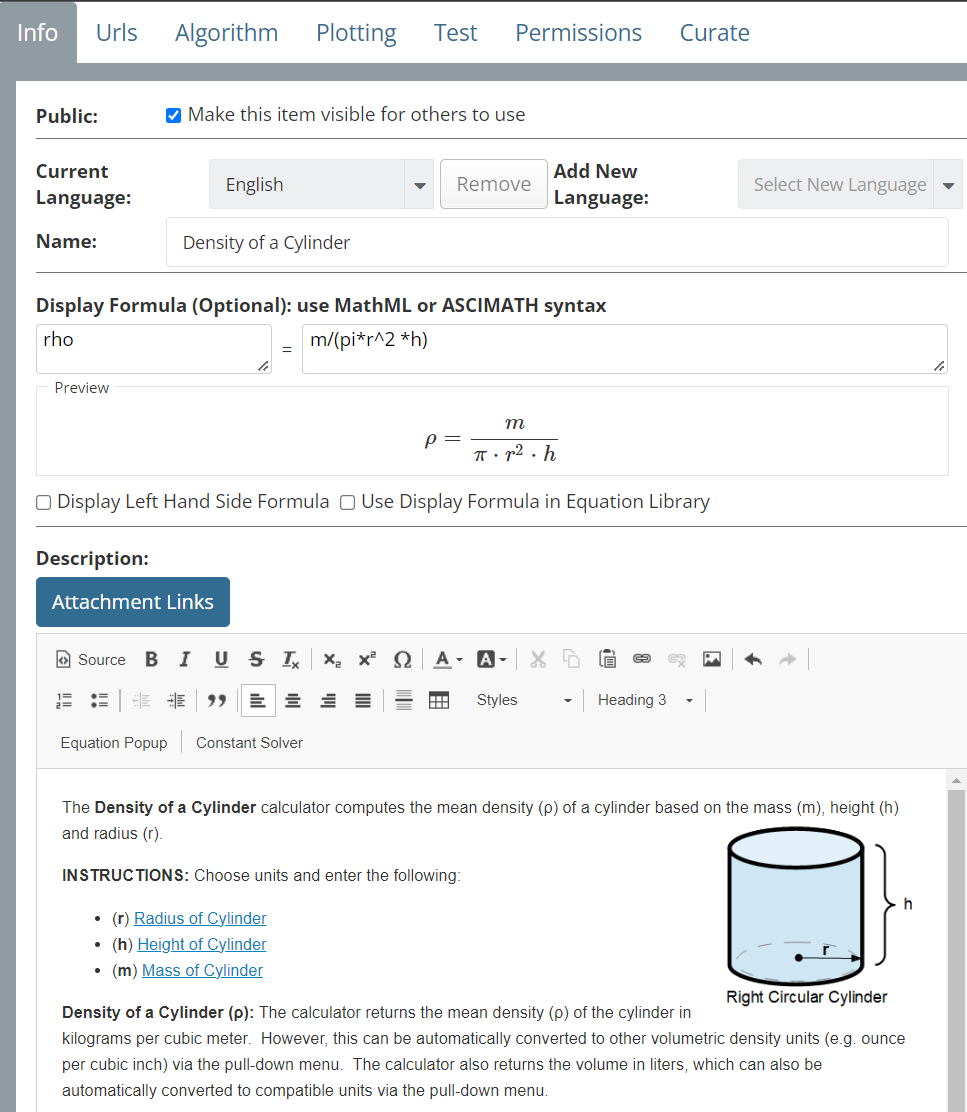 We encourage people to share their knowledge and efforts by checking this box. If you leave this box unchecked, the equation will only be visible to you and then only when you are logged into vCalc. It will be your private equation. Note: To be available to the public, all equations must have all successful tests (see Using the Test Tab), and there must be at least one test case. Making an equation public is your option and your equation is yours alone unless you choose to share it.
Current Language: This is where you can designate which language is the default. If you specify none, it is assumed to be English.
Add New Language: This is where you specify that your equation will have Description Sections (see below) in multiple languages. You can add languages from the list, and vCalc will automatically create a button on the end product that lets users toggle to those other language description pages for your equation. If you desire a language outside of those listed, let us know via the User Feedback function.
Name: You need to give your equation a name. The name will have to be unique to any other token (calculator, equation, constant or dataset) in your space, and this is what the title of your equation will display on its wiki page and in any listing of equations in tag pages and collection pages.
Display Formula (Optional): You can augment the equation page with the display of a mathematical expression. Many equations are best known by their formula (e.g., E = mc2). You can also choose to have the math expression (formula) to be displayed in equation listings (tag pages and collections). You do this by checking the Display Left Hand Side Formula [_] and Display Formula in Equation Library [_] boxes. The syntax for both sides of the equation are interpreted by the Ascii Math function and translated into more realistic math format. This includes a powerful list of display features for parenthesis, brackets, braces, Greek letters, math operation symbols, vectors and matrices. CLICK HERE for help with Ascii Math. After you have entered values in the Markup windows, click inside the Preview window and the markup will be displayed as rendered in Ascii Math.
Description: The description of your equation is shown below the user inputs when your equation is shown in an Internet browser. This is a great place to provide:
- Brief summary of the equation.
- Instructions on the input parameters.
- A description of the outputs.
- Information on the math and science behind the calculation.
- Links to related equations, calculators, constants and datasets within vCalc.
- Links to external resources on the Internet.
- Pop-up calculators (equations) that may be helpful to your equation users.
- Images that clarify inputs and outputs.
- .... and anything else you wish.
There are two modes inside the Description section toggled by the Source button. The default is the description content as it appears in the WYSIWYG wiki editor. The other is the html code for advanced users.
Summary Steps: Using the Info Tab
- Type a unique name for the new equation.
- Specify if there are multiple language versions of the wiki page.
- Provide a math formula to display (optional).
- Create the wiki informational page(s).
- When you are ready, check the option for making the item visible for others.