Processing...
To create an equation, you have to be logged into vCalc. 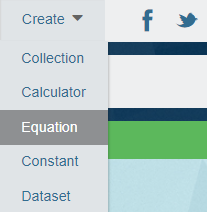 Once you’ve logged into vCalc, click on the Create button at the top right of the screen and choose Equation. This will take you to the Equation Editor's user interface.
The Equation Editor has seven tabs:
- Info - This tab is where you give your equation a name, designate if it is for public use, specify if there will be multiple languages, provide mathematical formula for display, and tis is where you build the content for the display page (wiki)
- URL - This tab is where you can enter one or more Uniform Resource Locators (web addresses) within the vCalc domain.
- Algorithm - This tab is the user interface for programming your equation and developing your automatically generate user interface for the equation inputs.
- Plotting - This is where the equation creator can specify graphing capabilities for the equation.
- Test - This tab is a testing feature that lets you test your equation within the Equation Editor.
- Permissions - This tab lets you share the edit and administrative functions of your equations with other vCalc registered users and groups.
- Curate - This is where a governing body (e.g., Corporation, University or Foundation) can put their stamp indicating a review level of the equation.
Steps to Create an Equation with the Equation Editor
- Log into your vCalc account
- Click on the "Create" button at the top right of the wiki page.
- Choose "Equation" from the drop menu
- Enter the relevant data in each of the five tabs on the equation editor's window
When you first launch the Equation Editor, it will take you to the Info tab (see Next Article).
For a complete tutorial showing how to build a vCalc Equation.