Processing...
The WYSIWYG editor under in the Description section of the INFO tab allows you to choose fonts and formats for your content in the calculator web page. The special features in the editor include:
- Source – This lets you see and edit the page's html. Warning: this is for those who understand html code. Errors can easily break the page.
- Equation Popup – This let's you embed a popup equation calculator in the wiki page. To use it, put your cursor in the correct location and click on the Equation Popup. At this point, you’ll need to enter the UUID of the equation you want to include. The UUID for every equation or constant is listed on the right side of the Constant or Equation page under the Tags field (see image).
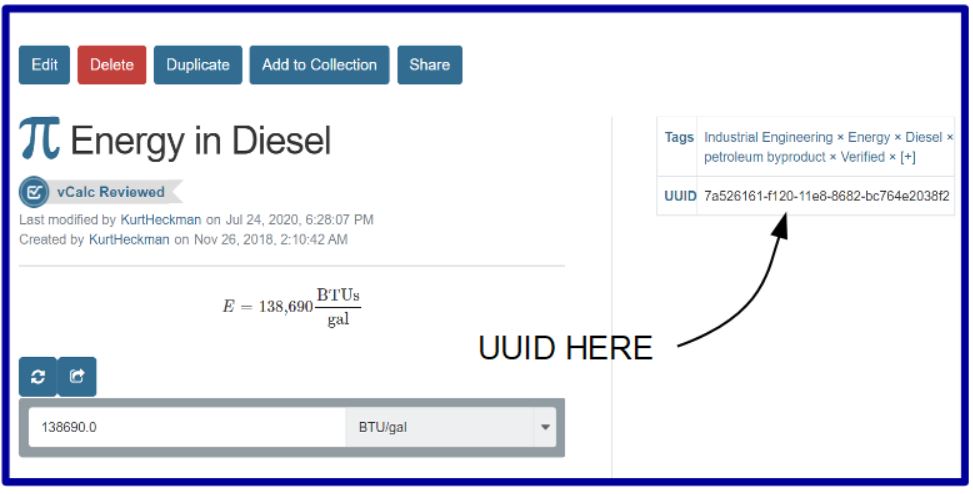
- Data Item Solver – This let’s you embed the return value from a vCalc Data Item in your web page. To use it, put your cursor in the correct location and click on the Data Item Solver. At this point, you’ll need to enter the UUID of the constant you want to include. The UUID for every equation or data item is listed on the right side of the Data Item page under the Tags field.
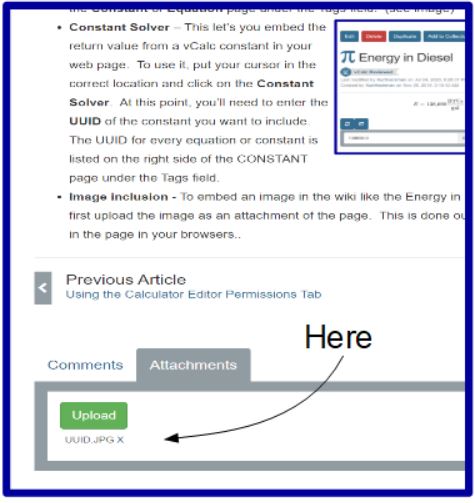
- Image inclusion - To embed an image in the wiki like the Energy in Diesel graphic above, you have to first upload the image as an attachment of the page. This is done outside of the editor but while viewing in the page in your browsers (see image). Then go into the editor and click on the Attachment Links button. This will let you copy the URL of the image and provides several formatting options. Then, when you click on the image button, you can paste the image URL and set the dimensions and position of the image in the wiki page.
The WYSIWYG Editor is consistent across all of vCalc's token types (calculators, equations, data items and collections). This means that the above features are available in all of those objects.